
|
|
|
|
      |
Home | Product | Downloads | Purchase | Support |
User Forum |


 |
|
Lesson 8 - Export Morph Result |
    Online Tutorials Online Tutorials 1. You may enjoy the real-time morph playing in FantaMorph, but In most cases, you need to export the morph result to file(s) for sharing them with friends somewhere or using them in other software. There are 2 manners for export: one is exporting a snapshot of current morph frame as an image file, the other is exporting the whole morph to image sequence files or a movie file.
2. Drag Preview Slider to the position that you want to
export. For instance, position the Preview Slider to center, thus the frame
looks like Image 1 as well as Image 2 with a half of features of
each image. To Export current frame you may click the Export Current Frame
button (
3. In most cases, movie is your favorite export form.
Click Export Movie button (
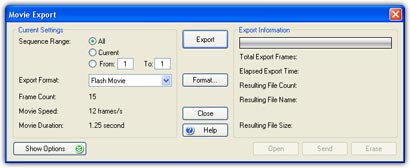
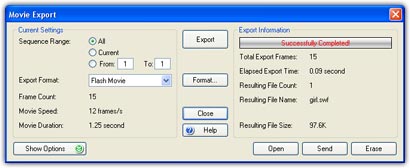
4. Since FantaMorph renders each frame, you will see them appear one-by-one in the Preview window until the morph rendering completes. Once done, a message box will be displayed to show some useful information. As you can see, it took only 1 second to render our 15 sample frames for the morph and the resulting file size is only 161K. The export speed has relations to movie size, key dots count, add-on effects and your computer performance. In a word, FantaMorph is the fastest software today.
5. All controls are disabled during the export process except Cancel Export Button, pressing which can break the export process, and no result will be created. 6. As default, the resulting file will automatically open with the system associated program after export. It's helpful for inspecting the resulting quality immediately.
| ||
|
Copyright © 2002-2004 Abrosoft. All rights reserved.
Contact Us |

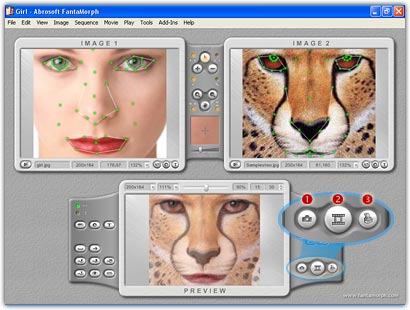
 )
on the preview panel or choose Movie/Export Current Frame or
File/Export Current Frame menu. In the export interface, you should enter a
file name and choose an image format (BMP, JPEG, TIFF, PNG, TGA, PCX, GIF) for
the export file. Below is a morphing picture exported in JPEG format. Notice
that you may change JPEG export quality from Option window.
)
on the preview panel or choose Movie/Export Current Frame or
File/Export Current Frame menu. In the export interface, you should enter a
file name and choose an image format (BMP, JPEG, TIFF, PNG, TGA, PCX, GIF) for
the export file. Below is a morphing picture exported in JPEG format. Notice
that you may change JPEG export quality from Option window.
 )
on the preview panel or choose Movie/Export Movie or File/Export Movie
menu, then select one of the 5 export manners (Image Sequence, AVI Movie,
Animated GIF, Flash Movie, Web Page) offered in the popup menu. In the export
interface, enter a file name and input other parameters needed for your export.
)
on the preview panel or choose Movie/Export Movie or File/Export Movie
menu, then select one of the 5 export manners (Image Sequence, AVI Movie,
Animated GIF, Flash Movie, Web Page) offered in the popup menu. In the export
interface, enter a file name and input other parameters needed for your export.