
|
|
|
|
      |
Home | Product | Downloads | Purchase | Support |
User Forum |


 |
|
How to Morph More than Two Images |
    How-to Articles How-to Articles You can not make project containing three or more source
images, but to create a long morph movie is currently possible and easy also by
using three or more source images though the following steps.
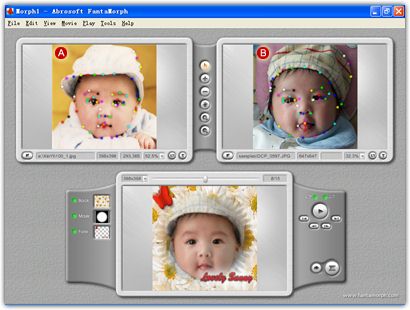
1. Make project "Morph1" by importing A as "Image 1" and B as "Image 2", then export image sequence for instance by JPG format, and now you have 15 morphing pictures named Morph101.jpg, Morph102.jpg, ..., Morph115.jpg.
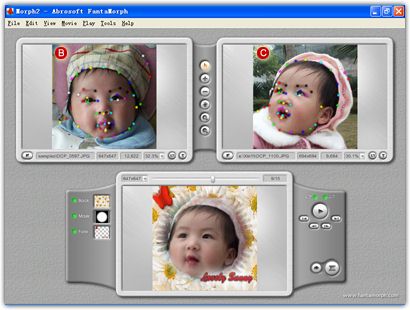
2. Swap source images from Edit menu; now B is "Image1" and A is "Image 2", then import C as "Image 2" and save project as "Morph2". Adjust key dots' position on C; add some new key dots or delete useless key dots if need, then export image sequence to get 15 morphing pictures named Morph201.jpg to Morph215.jpg.
3. Repeating step 2, save project as "Morph3" when source images are C and D; save project as "Morph4" when source images are D and E. Now, you have got all result morphing pictures from Morph101.jpg to Morph115.jpg, Morph201.jpg to Morph215.jpg, Morph301.jpg to Morph315.jpg, and Morph401.jpg to Morph415.jpg, total 60 files. 4. Choose Tools/Image Sequence Packer menu, adding all these 60 result morphing pictures, choosing "Flash Movie" option, then press Start Pack button. That is all! See more about "How to Use Image Sequence Packer". The resulting movie is below. How it is affecting! You may can't wait to morph your life now...
| ||
|
Copyright © 2002-2004 Abrosoft. All rights reserved.
Contact Us |